Delivery
Experience Manager Delivery and Scheduling
The Delivery tab controls when, how often, and in what order your experience is distributed to eligible users.

Scheduling
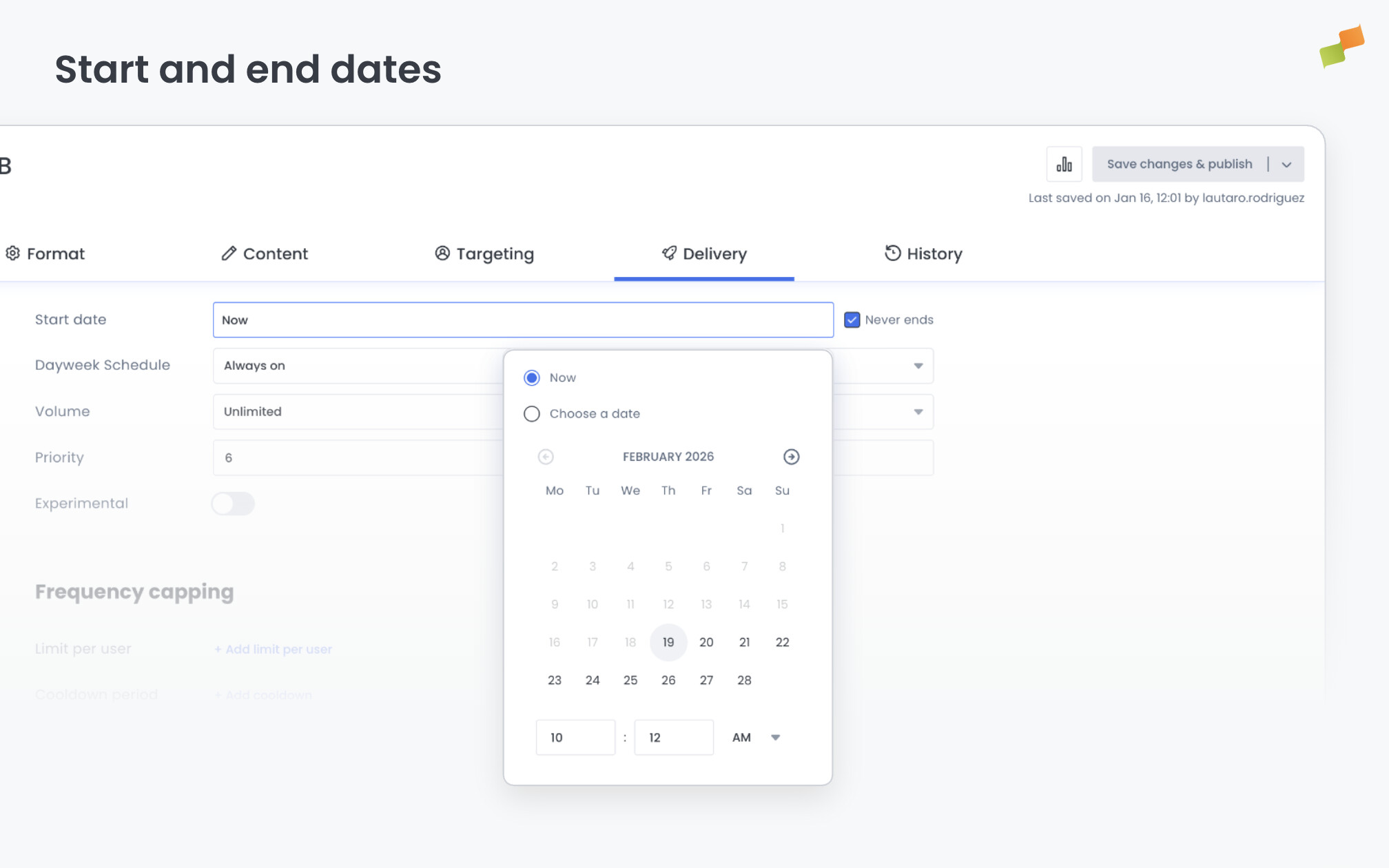
Start and end dates
Set when the experience begins delivering. Choose Now for immediate activation, or set a future date.
By default, Never ends is checked and the experience runs indefinitely. Untick Never ends to reveal an End date field. Use this for time-bound campaigns: a two-week branded content flight, a seasonal promotion, or an event-specific widget.
Dayweek schedule
Control which days and time slots the experience is active.
| Option | Behavior |
|---|---|
| All week | Active every day, all hours |
| Custom | Define specific time blocks per day of the week |
With Custom, a calendar grid shows Monday through Sunday with hourly rows.
- Click and drag on the grid to create a time slot.
- A popup appears where you can set the slot to repeat on specific days. For example, create a slot from 9:00 to 13:00 and set it to repeat on Monday, Wednesday, and Friday.
This is useful for time-sensitive experiences like breaking news widgets, sports results during match days, or TV timetable cards that only make sense during specific hours.
Frequency capping
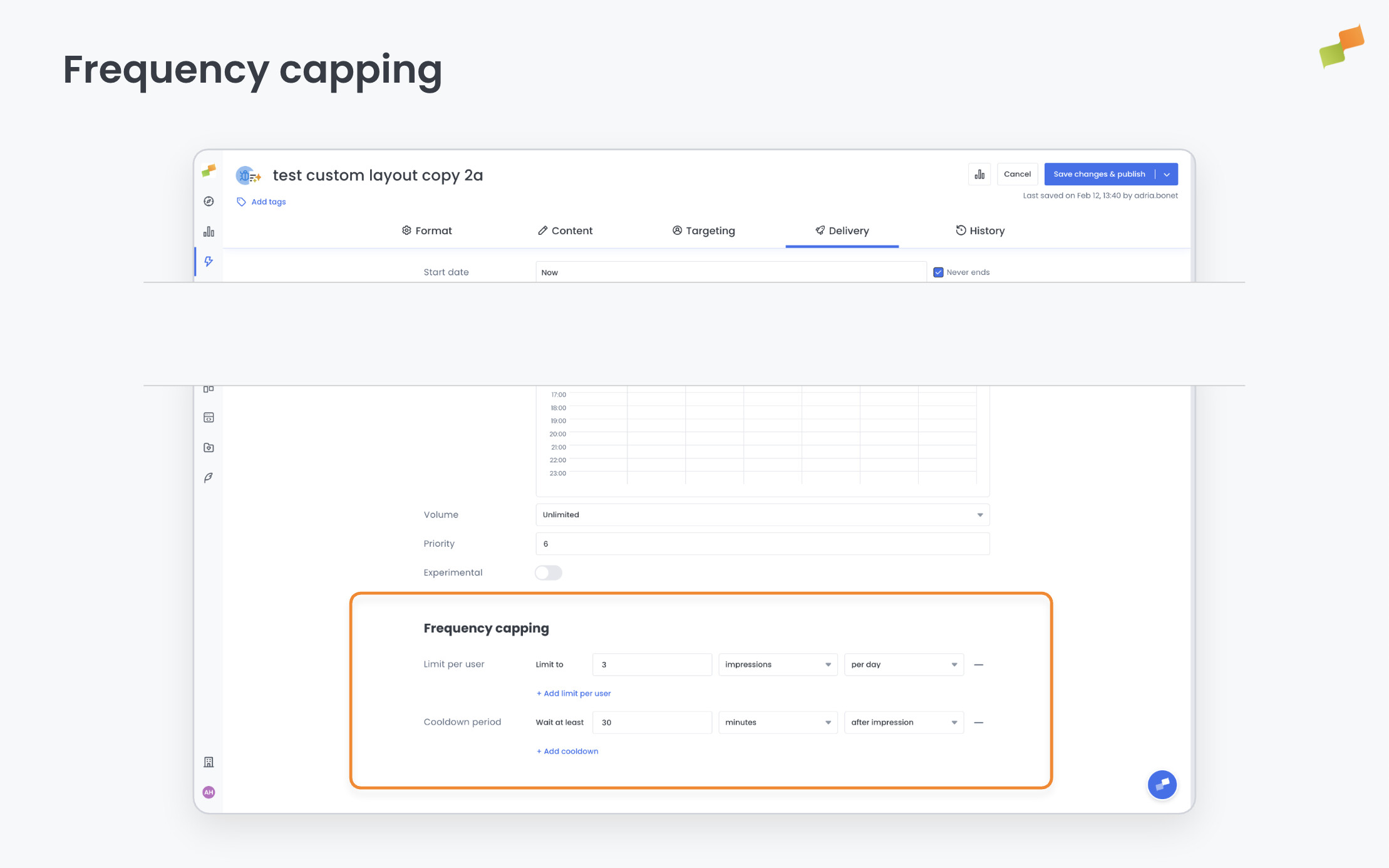
Frequency capping prevents the same user from seeing an experience too often.
Limit per user
Set a maximum number of events per user within a time window. Each limit has three parameters:
- Count: The maximum number (e.g.,
1). - Event type: Count based on impressions (experience was shown) or closes (user explicitly dismissed it).
- Time window: Per hour, day, week, month, or lifetime.
Example: Limit to 1 impression per day. Or limit to 3 closes per lifetime to stop showing the experience to users who repeatedly dismiss it.
You can add multiple limits. Click + Add limit per user to create layered caps (e.g., 1 impression per day AND 5 impressions per week).
1 ÷ count has elapsed since the last event. For example, a limit of 2 impressions per hour means the experience can show again after 30 minutes (1 ÷ 2 = 0.5 hours).
Cooldown period
Set a minimum wait time before the experience can appear again for the same user. Each cooldown has three parameters:
- Duration: The wait time (e.g.,
30). - Unit: Seconds, minutes, or hours.
- Trigger: Start the cooldown after impression or after close.
Example: Wait at least 30 minutes after an impression. Or wait 2 hours after a user closes the experience before showing it again.
You can add multiple cooldowns. Click + Add cooldown to stack cooldown rules.
Volume and Distribution
Volume and Distribution are designed for advertising and campaign-like experiences where you need to deliver a fixed number of impressions over a controlled period.
Volume
Set a cap on how many times the experience is delivered in total. Once the specified limit is reached, the experience automatically deactivates.
| Option | What it counts |
|---|---|
| Unlimited | No cap. The experience runs without a total limit. |
| Impressions | Total number of times the experience is shown to users. |
| Openings | Total number of times users actively open or expand the experience. |
Distribution
Distribution controls the pacing of delivery. It only appears when you have set a volume cap (Impressions or Openings) and an end date.
| Option | Behavior |
|---|---|
| As fast as possible | Delivers the full volume as quickly as targeting allows |
| Evenly distributed | Spreads delivery evenly across the period between start and end date. The system iteratively adjusts the percentage of times the experience is randomly delivered to ensure the volume is met by the end date with regular distribution over time |
Example: A branded content promotion with a budget of one million impressions over two weeks. Set the volume to 1,000,000 impressions, the end date to 14 days from now, and distribution to Evenly distributed. The system paces delivery automatically instead of burning through the budget in the first few hours.
How even distribution works: If an experience normally meets its delivery criteria 200 times per day, but there are only 50 impressions left to fulfill the quota and the campaign ends in 1 day, the system will deliver the experience only 25% of the time (randomly selected), ensuring the remaining impressions are spread evenly across the final day.
This combination is particularly useful for monetization experiences: brand days, native advertising campaigns, and sponsored content promotions where impression budgets and flight dates are agreed in advance.
Priority
Priority determines which experience wins when multiple experiences compete for the same placement on a page. Higher priority experiences take precedence.
Conflict types: Multiple experiences cannot coexist on the same page in two scenarios:
- Multiple Flowcards (only one Flowcard can be active per page)
- Multiple Inline experiences that target the same CSS selector
In these conflict scenarios, only the highest-priority experience is delivered.
Same priority behavior: When conflicting experiences share the same priority value, the system delivers one of them randomly. This technique can distribute different experiences across traffic portions. Unlike using Experiment Groups, these assignments are not sticky with the user — each pageview gets a new random selection.
When multiple recommender experiences exist on the same page, all experiences including recommendations are fetched in a single backend request for performance.
Deduplication is automatic: each article appears in only one module. If two experiences request the same article, the higher-priority experience gets it.
Going deeper
- Experience Manager Overview: The four-tab editor walkthrough.
- Delivery & Scheduling
- Triggers
- Targeting
- A/B Testing
- Blueprints
- Inline: DOM injection, CSS selector placement, and visual element selector.
- Popups: Modal vs contextual modes, position, triggers, and orchestration.
- Flowcards: Isolated AMP rendering, snap points, card icons, and browser history integration.
- Tag Experiences: SDK configuration for tracking, integrations, and third-party tools.
- Recommender: Configure recommendation engines and layouts.
- Page Transformations
- Testing and Troubleshooting: Preview, live test, and debug your experiences.
- Web Activation: How the SDK delivers experiences on your site.
- AMP Activation: Run Flowcards on AMP pages.