Target specific audiences with personalized content overlays, embeds, and page modifications — no code required. Recirculation, subscription prompts, up-sell offers, discounts, retention campaigns, contextual ads, premium branded content: you configure it in the editor, the system delivers it to the right user at the right moment.
Editors, product managers, and business stakeholders can create and publish experiences without developer involvement. When full control is needed, every layer can be extended with full-fledged custom HTML, CSS, and JavaScript.
How Experiences work
Experiences are built on three pillars: Formats, Catalog, and Experience Manager.
Formats define how an experience reaches the user:
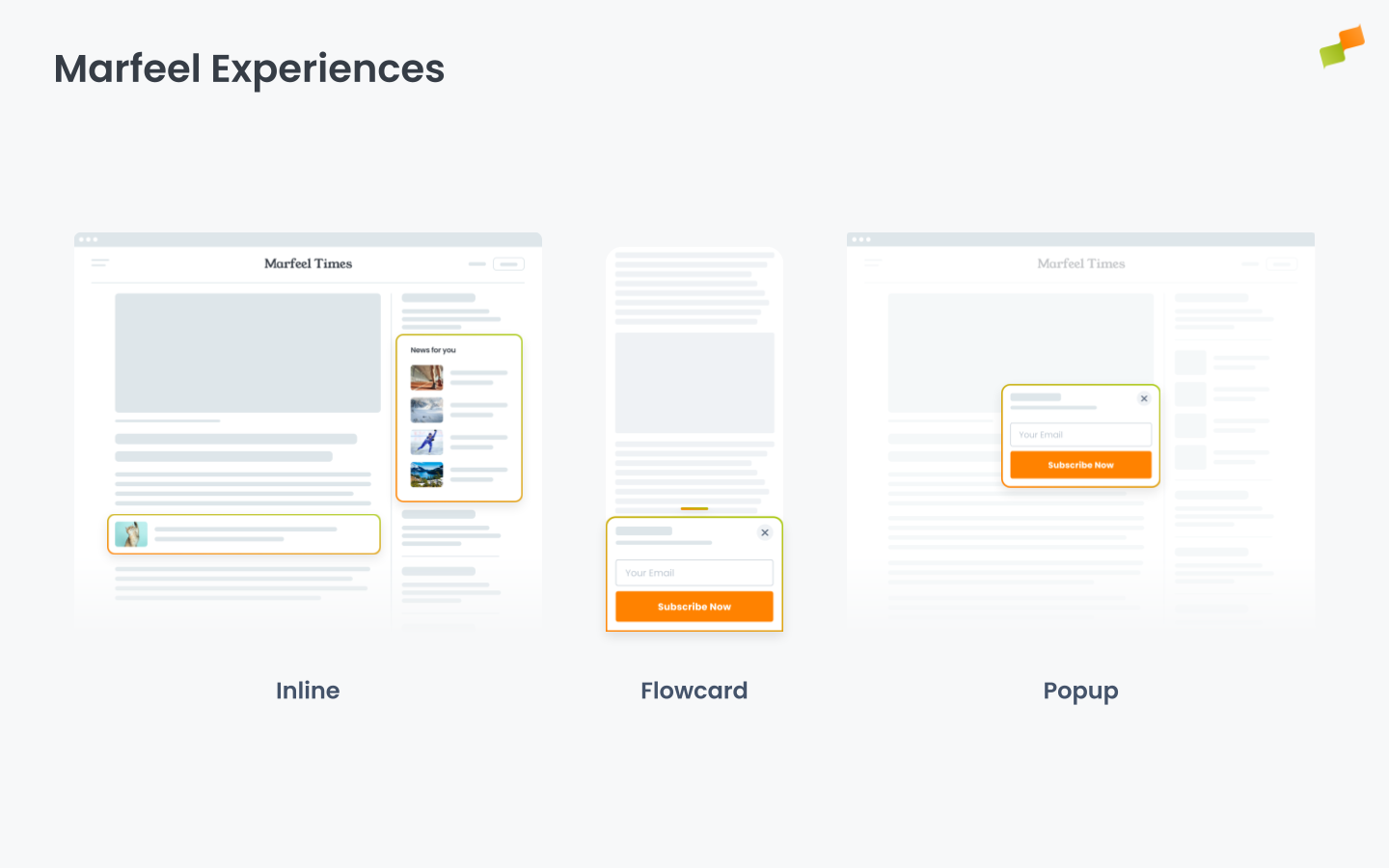
- Inline experiences inject HTML directly into the page DOM at a position you define with a CSS selector. Your site’s CSS applies automatically, making them look native. Ideal for content recommendations, forms, and in-page modules.
- Flowcards are scroll-bounded overlay cards that slide up from the bottom of the viewport. They load content in an isolated AMP environment — separate from the page DOM — making them ideal for heavy content like full articles with ads and analytics. Primarily for mobile.
- Popups render as configurable overlays on top of page content. Position, mode (modal or contextual), background blur, and close behavior are all configurable. Range from full-screen gates to subtle floating notifications.
- Tag Experiences configure the Marfeel SDK through the Experience Manager instead of modifying your site’s JavaScript. This eliminates development cycles and speeds up onboarding. Most Tag Experiences set up SDK tracking and integrations using CSS selectors rather than code changes. Common uses: recirculation module tagging (identify click targets with CSS selectors), Facebook Pixel tracking, Piano paywall integration, conversion event triggers.
Visual formats (Inline, Flowcards, Popups) share the same configuration model. Tag Experiences compile into the SDK at the edge — the required JavaScript is bundled into the SDK itself, so no extra round trip to the server is needed.
Format comparison
| Flowcards | Inline | Popups | Tag | |
|---|---|---|---|---|
| What it is | Scroll-bounded overlay card in an isolated AMP environment | Content block injected directly into the page DOM | Configurable overlay on top of page content | JavaScript compiled into SDK for tracking, integrations, and data wiring |
| Where it appears | Fixed at the bottom of the screen | At a CSS selector location within the page | Any position on the viewport (3x3 grid) | Background execution — not visible to users |
| User interaction | Drag between snap points to expand or minimize | Scrolls naturally with page content | Dismiss via close button, background click, or interaction | No user interaction — fires automatically |
| Rendering | Isolated from page — own HTML, CSS, JS | Inherits page CSS, can inject additional styles and JS | Overlay — does not inject into the DOM | Compiled into SDK — no visual rendering |
| Best for | Article funneling for Discover, editorial widgets, branded content, recommendations | Below-article recommenders, in-content forms, native-looking modules | Subscription gates, discount offers, consent dialogs, floating notifications | Tracking pixels, third-party integrations, paywall logic, recirculation tagging |
| AMP compatible | Yes | Only for Recommenders, via Endpoint | No | No |
Catalog is an extensive library of ready-to-use blueprints designed to solve specific problems: content recommendations, newsletter signups, gated content prompts, page transformations, editorial widgets, branded content promotions, audience growth tools. Pick a blueprint, configure it, publish.
Catalog blueprints work across multiple formats. A recommender can run as a Flowcard, an Inline block, or a Popup. A newsletter subscription form can be an Inline embed within the article, a Flowcard that reveals on scroll, or a modal Popup for high-priority campaigns. The catalog defines what the experience looks like, with the format based on your use case.
Experience Manager is the editor that ties it all together. Every experience is configured through four tabs:
- Format: how it appears and when it gets activated
- Content: what it shows
- Targeting: who sees it
- Delivery: how much, how often, and when
Targeting, scheduling, frequency capping, and A/B testing apply to every experience regardless of format or template.
See Catalog Overview for all blueprint categories and how they work with formats.
Common use cases
| Scenario | Solution |
|---|---|
| Drive traffic to high-performing content | Flowcard or Inline with Recommender targeting related articles |
| Grow newsletter subscribers | Inline form below articles or scroll-triggered Popup with targeting |
| Reduce bounce on first pageview | Back navigation trigger with Flowcard showing trending content |
| Promote regional newsletter to local audience | Popup with geographic targeting and frequency capping |
| Showcase podcast episodes on relevant content | Inline or Flowcard with topic-based editorial targeting |
| Retarget users on Facebook | Tag Experience with Facebook Pixel configured to fire on specific user segments |
| Implement micro-donations for authors | Popup or Inline form with custom layout, targeted to engaged readers |
| Integrate third-party paywall | Tag Experience triggering Piano or custom paywall logic based on article access rules |
| Promote mobile app downloads | Popup or Flowcard with device targeting (mobile-only) and loyalty segment filters |
| Track recirculation clicks without code changes | Tag Experience identifying click targets with CSS selectors instead of modifying site JavaScript |
| Track conversion events without modifying site code | Tag Experience executing event tracking at page lifecycle stages |
Targeting with first-party data
Experiences use first-party data collected during user sessions: behavioral signals (loyalty segment, pages visited, scroll depth), contextual signals (section, topic, author, content type), and user attributes (device, location, traffic source).
You can combine these with data from your DMP, CDP, or CRM through custom variables. The result is precise audience targeting across 40+ dimensions — without third-party cookies.
Getting started
- Navigate to Experiences in the Marfeel Hub sidebar.
- Click + New Experience.
- Select a template from the gallery. Filter by format (Flowcard, Inline, Popup, Tag) using the sidebar.
- Configure across four tabs: Format, Content, Targeting, Delivery.
- Click Save & Publish.
The experience is live and delivering to your audience based on your targeting rules.
How to use this documentation
This documentation is organized to help you understand, create, and deploy experiences effectively. Follow this reading path:
1. Start: Understanding Experiences
You are here. This overview introduces the three pillars (Formats, Catalog, Experience Manager) and explains how they work together.
2. Learn: Experience Manager
Once you understand what Experiences are, learn how to create them in the editor:
- Experience Manager Overview: The four-tab editor (Format, Content, Targeting, Delivery)
- Triggers: Control when experiences activate based on user behavior
- Targeting: Define who sees your experiences using 40+ dimensions
- Delivery and Scheduling: Control frequency, priority, and timing
- A/B Testing: Measure impact with experimentation
3. Choose: Format documentation
Understand which format fits your use case:
- Flowcards: Scroll-bounded cards for mobile, isolated AMP rendering
- Inline: Inject content directly into the page at CSS selector positions
- Popups: Overlays with configurable position and behavior
- Tag Experiences: SDK configuration for tracking and integrations
- AMP Transformations: Repurpose AMP pages for Flowcards
4. Configure: Content and blueprints
Dive deeper into what you can build:
- Catalog Overview: Browse blueprint categories (Recommenders, Forms, Widgets, etc.)
- Content and Recommender: Configure ranking algorithms
- Page Transformations: Modify page elements without code
- Blueprints: Create reusable templates for your organization
5. Test: Validation and troubleshooting
Ensure experiences work before publishing:
- Testing and Troubleshooting: Preview, live test, and diagnose issues
6. Deploy: Integration
Understand how experiences deliver on your site:
- Web Activation: How the SDK works on standard web pages
- AMP Activation: Run Flowcards on AMP pages
Glossary
Key terms used throughout Experiences documentation:
| Term | Definition |
|---|---|
| Experience | A targeted piece of content or functionality delivered to specific users under defined conditions. Encompasses visual formats (Flowcards, Inline, Popups) and non-visual formats (Tag Experiences, Page Transformations). |
| Format | The delivery mechanism that determines how an experience reaches the user. Available formats: Flowcard, Inline, Popup, Tag, Page Transformations. |
| Blueprint | A reusable template that provides pre-configured defaults for creating experiences. Blueprints are organized by category (Recommenders, Forms, Widgets, etc.). |
| Catalog | The library of ready-to-use blueprints organized by business use case. |
| Activate | When an experience becomes visible or executes. For visual formats, this means appearing on screen. For Tag Experiences, this means the script executes. |
| Trigger | A condition that causes an experience to activate. Examples: scroll depth, time elapsed, element visibility, user click. |
| Render | The process by which the SDK draws a visual experience on the page. Flowcards render in an isolated environment, Inline experiences inject into the DOM, Popups render as overlays. |
| Targeting | Rules that determine who sees an experience based on user attributes (loyalty, device, location), contextual signals (section, topic, author), or custom variables. |
| Delivery | Settings that control how much and how often an experience appears: priority, frequency capping, scheduling, volume limits. |
| Snap point | Vertical positions for Flowcards that control visibility. Five snap points: Hidden, Minimized, Initial, Promoted, Active. |
| Interactive state | For Flowcards, the snap point at which JavaScript execution begins. Controls when ads, analytics, and interactive components activate. |
| Modal | A mode where the experience blocks interaction with the underlying page until dismissed. Applies to Flowcards and Popups. |
| Contextual | A mode where users can interact with both the experience and the underlying page simultaneously. Applies to Flowcards and Popups. |
| CSS selector | A pattern that identifies HTML elements on a page. Used by Inline experiences for placement and by Intersection Observer triggers for activation. |
| Recommender | A content engine that surfaces relevant articles based on ranking algorithms (Most Read, Trending, Personalized, etc.). |
Going deeper
- Experience Manager Overview: The four-tab editor walkthrough.
- Delivery & Scheduling
- Triggers
- Targeting
- A/B Testing
- Blueprints
- Inline: DOM injection, CSS selector placement, and visual element selector.
- Popups: Modal vs contextual modes, position, triggers, and orchestration.
- Flowcards: Isolated AMP rendering, snap points, card icons, and browser history integration.
- Tag Experiences: SDK configuration for tracking, integrations, and third-party tools.
- Recommender: Configure recommendation engines and layouts.
- Page Transformations
- Testing and Troubleshooting: Preview, live test, and debug your experiences.
- Web Activation: How the SDK delivers experiences on your site.
- AMP Activation: Run Flowcards on AMP pages.