You can assign granular permissions per social feed, giving you complete control over who can draft, publish, or manage each account—user by user, feed by feed.
Instead of applying the same role across every feed, you can:
- Set permissions per feed (e.g. Facebook Politics, Instagram Trends, Facebook Cooking)
- Assign roles to users or teams for each feed individually
- Use the “All Feeds” option to simplify bulk access across accounts
Whether you want a freelancer to draft only for TikTok, or your social lead to manage all feeds, this model matches your team structure.
In addition, there’s a dedicated Social Media Admin role for managing global settings, layouts, connected accounts, and user access across all feeds.
Available permissions
Marfeel Amplify provides 4 roles:
- Feed Contributor: Can create and edit drafts for assigned feeds
- Feed Manager: Can publish, schedule, and delete posts on assigned feeds
- Feed Admin: Can manage feed-specific settings like appearance, scheduling, and automation
- Social Media Admin: Has admin rights across all feeds and full access to Marfeel Amplify global settings
| User Roles | Feed Contributor | Feed Manager | Feed Admin | Social Media Admin |
|---|---|---|---|---|
| Create and edit drafts | ||||
| Publish and schedule posts | - | |||
| Set up recommender engines | - | - | ||
| Enable/disable autopilot | - | - | ||
| Configure account settings | - | - | ||
| Connect social accounts | ||||
| Configure global Amplify settings | - | - | - | |
| Create & manage layouts | - | - | - | |
| Add/remove users from Amplify | - | - | ||
| Manage user access & permissions | - | - |
Different roles on different feeds
Users and teams can have different roles on different feeds. A user can be:
- Contributor on Facebook Politics
- Manager on Instagram Trends
- Admin on Facebook Cooking
You can also assign an “All Feeds” role at the user or team level. This applies the same permission across all current and future social feeds, unless a specific feed-level role is explicitly set, which will always take priority.
Data visibility in reports
Feed access also controls what data users can see in Explorer and Dashboards. Users only see data from feeds they have access to—regardless of their role.
| Role | Data visibility |
|---|---|
| Feed Contributor / Manager / Admin | Only data from assigned feeds |
| Social Media Admin | All feeds |
| Admin | All feeds |
Important: A user with Analyst permissions but limited feed access will only see reporting data for their assigned feeds. To grant full data visibility, assign the user to “All Feeds” or give them Social Media Admin or Admin role.
How to assign permissions
There are four ways to assign roles to users:
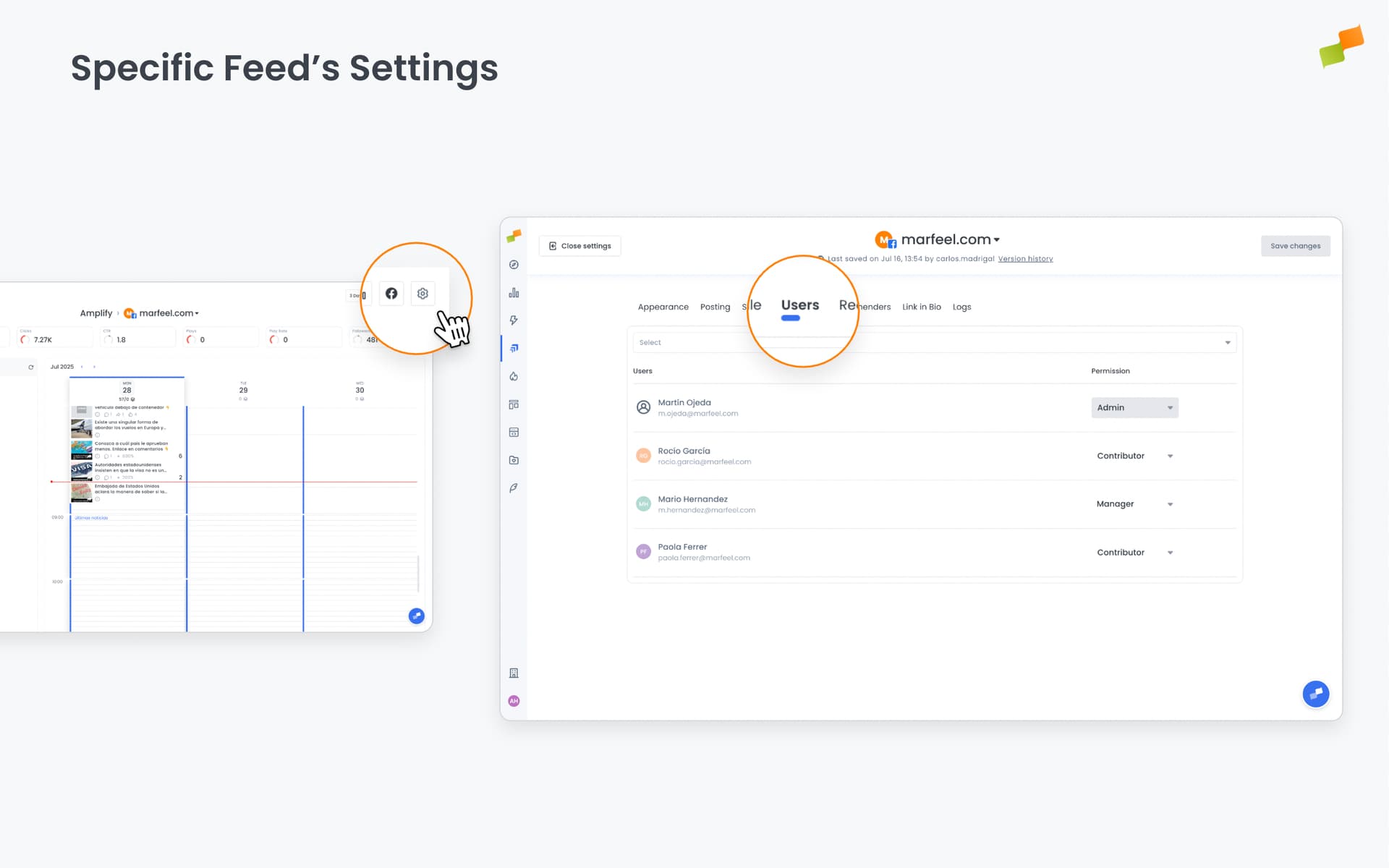
- From a specific feed’s settings A Feed Admin or Social Media Admin can add users directly to a feed and assign roles (e.g. Contributor, Manager, Admin).
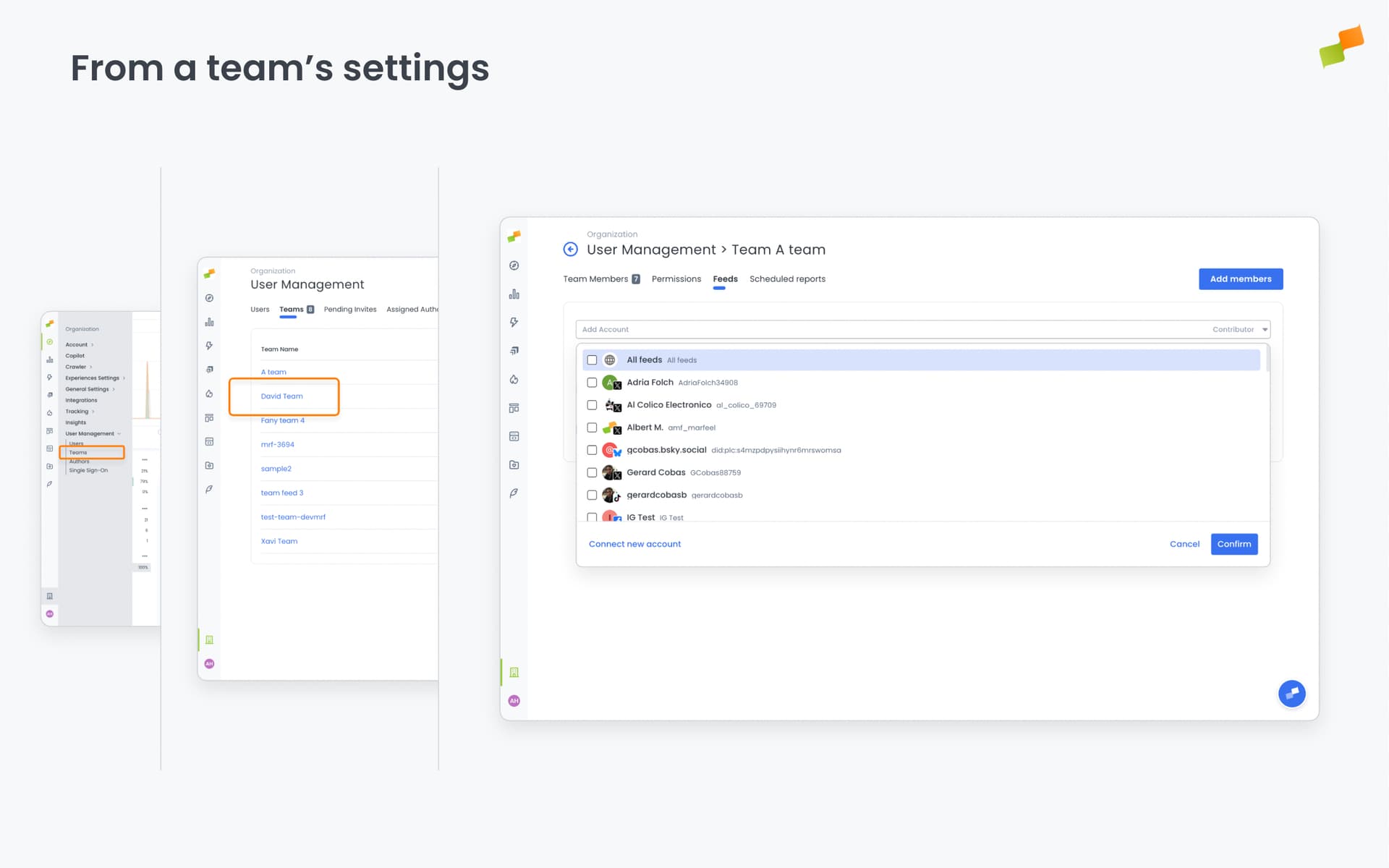
- From a team’s settings A Super Admin or User Manager can assign roles to an entire team on one or multiple feeds.
- From a user’s profile A Super Admin or User Manager can view and configure all feed-level roles assigned to an individual user.

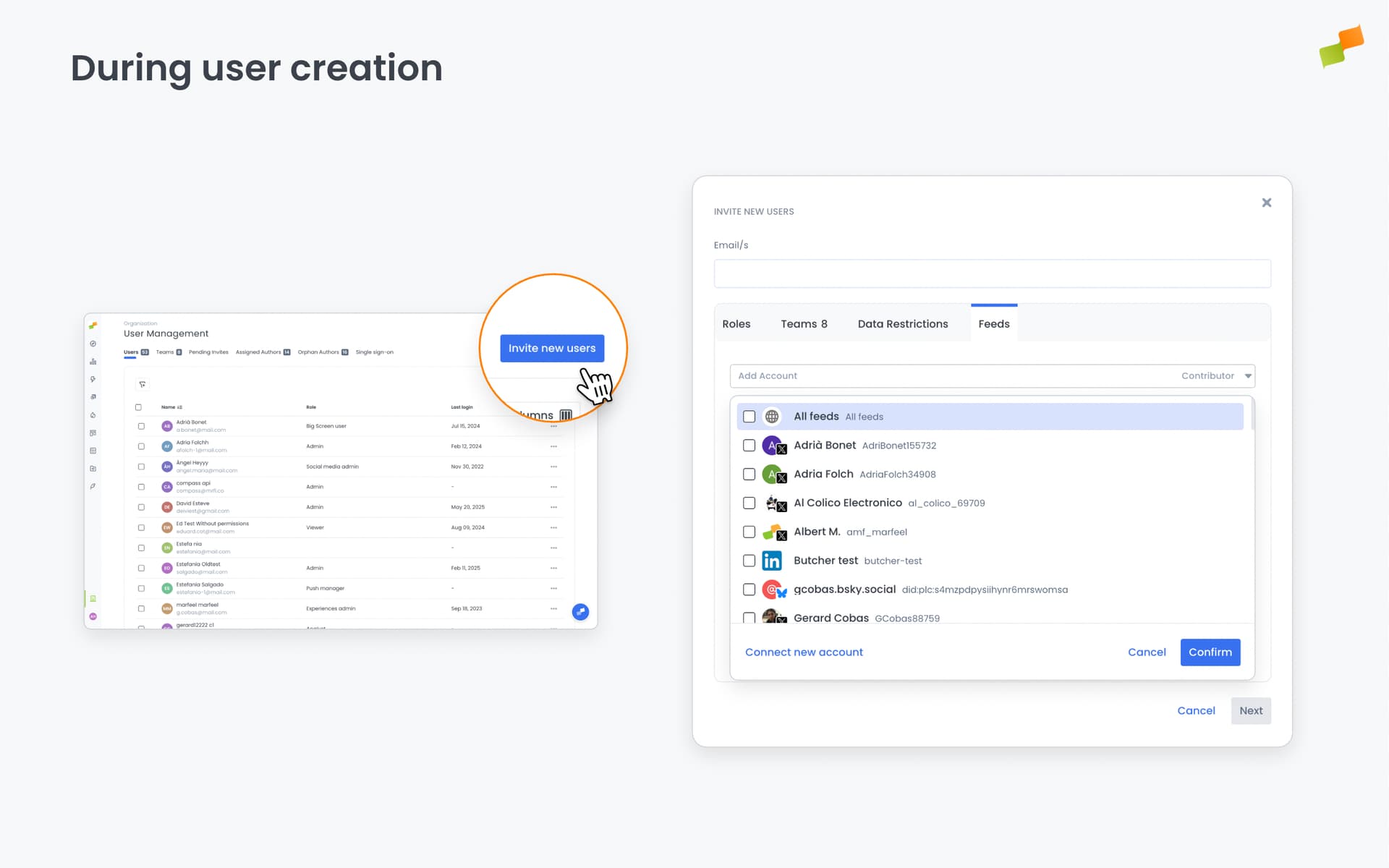
- During user creation Feed access and roles can be defined when setting up a new user account.
Permission Resolution
Permissions are applied using the following rules:
- User-level feed permissions override any team-based permissions on the same feed
- If a feed is assigned by multiple teams (with no user-level override), the most permissive team role applies
- “All Feeds” permissions apply only to feeds without any specific feed-level assignment
- A user-level “All Feeds” permission overrides any team-level “All Feeds” permissions
- If no user-level “All Feeds” exists, the most permissive team-level “All Feeds” applies
- Any specific feed assignment (user or team) always takes precedence over “All Feeds” permissions
Summary
| Scenario | Permission Applied |
|---|---|
| Feed has a user-level assignment | User-level permission |
| Feed assigned by multiple teams, no user override | Most permissive team-level permission |
| Feed not explicitly assigned to user or teams | User’s “All Feeds” if set, else most permissive team-level “All Feeds” |
| Feed has both specific and “All Feeds” assignment | Specific assignment always wins |
Examples
These examples illustrate how user-level and team-level permissions combine across individual feeds and “All Feeds” assignments.
Combined Permissions
In the following table Politics, Cooking, Sports and Trends refer to specific Social accounts.
|User | Team Memberships & Direct Assignments | Final Effective Permissions |
| # | User Permissions | Effective Role |
|---|---|---|
| 1 | Team A: Admin on All Feeds | All Feeds: Admin |
| 2 | Team B: Contributor on Politics & Trends All Feeds: Manager |
Contributor on Politics & Trends Manager on all others |
| 3 | Team A: Admin on All Feeds Feed Cooking: Contributor |
Contributor on Cooking Admin on all others |
| 4 | Team A: Admin on All Feeds Team B: Contributor on Politics & Trends Feed Politics: Admin |
Contributor in Trends Admin on Politics & all others |
| 5 | Team C: Admin on Cooking Team D: Contributor on Beauty All Feeds: Manager |
Admin on Cooking Contributor on Beauty Manager on all others |
| 6 | Team E: Contributor on Sports Feed Beauty: Admin |
Contributor on Sports Admin on Beauty |
| 7 | Team F: Manager on Trends Team G: Contributor on Cooking Feed Cooking: Admin |
Manager on Trends Admin on Cooking |
| 8 | Feed Trends: Contributor Feed Sports: Manager |
Contributor on Trends Manager on Sports |
| 9 | Team B: Contributor on Politics & Trends Team F: Manager on Trends |
Manager on Trends Contributor on Politics |
| 10 | Team B: Contributor on Politics & Trends Feed Trends: Admin |
Admin on Trends Contributor on Politics |
| 11 | Team A: Admin on All Feeds All Feeds: Manager |
Manager on All feeds |